Set the schedule. Free up your day.
Schedule audio and video by date, day of the week and time. Plan store hours, meal promotions, school routines and seasonal events.
Music in stores. Food videos in restaurants. Bells on campus.
Schedule music, announcements and videos with Tinkle. Manage sound and screens remotely.
Illustrative schedule only. Not live device data.
LESS REPETITION. MORE CONTROL.
Let the system handle routine playback.
Stay in control whenever plans change.
Schedule audio and video by date, day of the week and time. Plan store hours, meal promotions, school routines and seasonal events.
Connect from a phone or computer browser to manage media, adjust volume and check device status. Make live announcements when needed.
Organize devices into groups and distribute playback plans. Pair compatible Tinkle smart sockets with your setup to switch amplifiers and displays on and off with playback tasks.
BUILT FOR EVERYDAY PLACES
Put familiar devices to work in everyday spaces.
From one store or restaurant to schools, workplaces and multiple locations.
Play background music and promotional messages throughout the day. Switch to food promotion videos before lunch and dinner.
Show dishes and meal deals before lunch and dinner. Add background music during service and update new items and offers remotely.
Schedule class bells, exercise music, exam instructions and announcements to keep the school day on track.
Manage shift reminders, site announcements, background music and public displays across distributed locations.
MEET YOUR PLAYBACK TERMINAL
Android handles playback. Your browser handles management.
See how the player and web console work together.
Player home: view device identity and management options on a connected display.
Chinese interface examples; current versions may differ · Click to enlargeA SIMPLE START
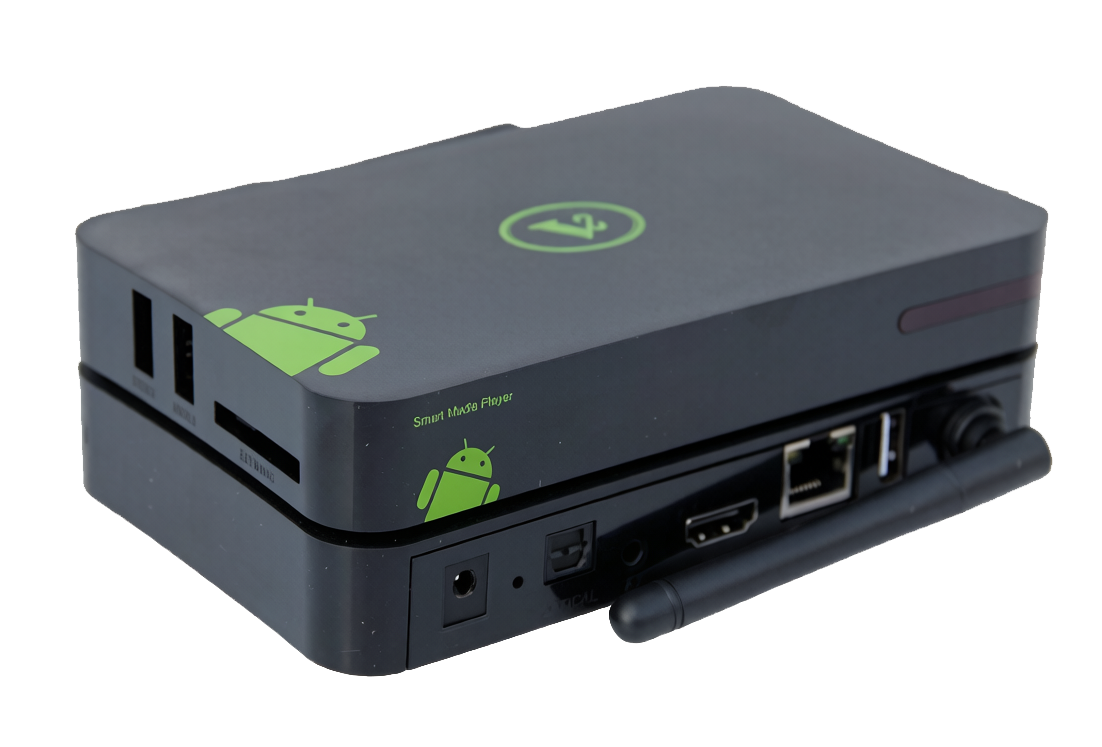
Use a TV, set-top box, tablet or phone running Android 7.0 or later. A set-top box can connect to an external display and amplifier.
Download and install the APK on your device. Use a USB drive for a TV or set-top box if needed. We recommend disabling screen casting on the device.
Sign up or sign in to the web console. Follow the steps to add a device, upload media and create playback plans.
Some TVs and set-top boxes use modified Android systems, so compatibility varies. For long-term use, we recommend the dedicated player.
GOOD TO KNOW
Once the device is running Tinkle and connected to the internet, use a computer or phone browser to manage media, check status and control it remotely.
Yes. Schedule music, promotional announcements and food videos for different times. Show food videos before lunch and dinner, then play music or offers at other times. Video playback requires a connected display.
Automatic power control requires a supported Tinkle smart socket and compatible hardware. Ordinary sockets do not provide this feature. Check compatibility before installation.
Remove the old device from the web console before upgrading, then add it again after installation. Check its group and existing plans and read the installation guide first.
READY WHEN YOU ARE
Start with one device. Make remote playback easier.
Upgrading to 3.3 from an earlier version? Remove the device from the console first, then add it again after upgrading.
Installation notes (中文) ↗